

Installation
Getting Started
First, install the camoufox package:
pip install -U "camoufox[geoip]"The geoip parameter is optional, but heavily recommended if you are using proxies. It will download an extra dataset to determine the user's longitude, latitude, timezone, country, & locale.
Next, download the Camoufox browser:
python -m camoufox fetchpython3 -m camoufox fetchTo uninstall, run camoufox remove.
Managing multiple Camoufox versions
Install multiple versions of Camoufox from multiple repositories and switch between them as needed.
UI Manager
Installing
To use the Qt UI manager, install the [gui] extra:
pip install -U "camoufox[gui]"Usage
Launch it with:
camoufox guiHere you can manage installed browsers, active version, IP geolocation databases, and package info.
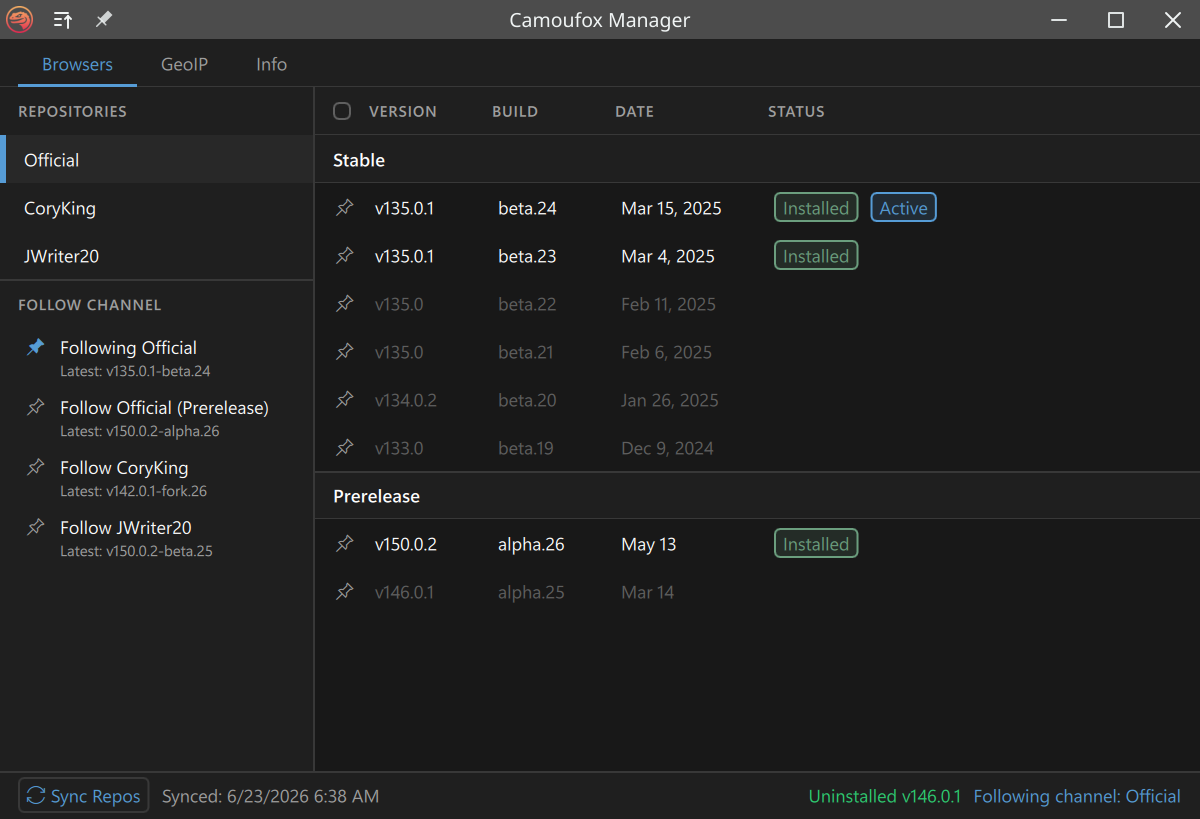
Instructions
- The item marked as Active is the browser that will be launched when starting Camoufox.
- You can pin a version by clicking the icon next to it. To follow a channel's latest releases instead, click the icon next to the channel name on the left. By default, the Official channel is followed.
CLI Manager
Six commands cover the whole workflow:
Demonstration
$ python -m camoufox --help

 Usage: python -m camoufox [OPTIONS] COMMAND [ARGS]...

╭─ Options ─────────────────────────────────────────────────────────────────────────────╮
│ --help  Show this message and exit.                                                   │
╰───────────────────────────────────────────────────────────────────────────────────────╯
╭─ Commands ────────────────────────────────────────────────────────────────────────────╮
│ active    Print the current active version                                            │
│ fetch     Install the active version, or a specific version                           │
│ gui       Launch the Camoufox Manager GUI (requires PySide6)                          │
│ list      List Camoufox versions                                                      │
│ path      Print the install directory path                                            │
│ remove    Remove downloaded data. By default, this removes everything.                │
│           Pass --select to pick a browser version to remove.                          │
│ server    Launch a Playwright server                                                  │
│ set       Set the active Camoufox version to use & fetch.                             │
│           By default, this opens an interactive selector for versions and settings.   │
│           You can also pass a specifier to activate directly:                         │
│           Pin version:                                                                │
│               camoufox set official/stable/134.0.2-beta.20                            │
│           Automatically find latest in a channel source:                              │
│               camoufox set official/stable                                            │
│ sync      Sync available versions from remote repositories                            │
│ test      Open the Playwright inspector                                               │
│ version   Display version, package, browser, and storage info                         │
╰───────────────────────────────────────────────────────────────────────────────────────╯
Sync with upstream repositories
Pull a list of release assets from GitHub.
> camoufox sync
Syncing repositories...
  Official... 24 versions
  CoryKing... 2 versions

Synced 26 versions from 2 repos.
Set active version
Choose the active browser: follow a channel, or pin a specific version. Can also be called with a specifier to activate directly.
The active target is either a channel or an exact version:
Same string, but add the version to pin it. By default, Camoufox follows official/stable.
Open an interactive selector TUI:
> camoufox setFollow a channel (each
> camoufox set official/stable # Default settingFollow the latest prerelease:
(This applies to releases marked as prelease in GitHub or named "alpha")
> camoufox set official/prereleasePin a specific version:
> camoufox set official/stable/134.0.2-beta.20Show active version
Prints the current active version string:
> camoufox active  # Following the default channel
official/stable
> camoufox set coryking/stable/142.0.1-fork.26
Pinned: coryking/stable/142.0.1-fork.26
Run 'camoufox fetch' to install.
> camoufox active # A specific version is pinned
coryking/stable/142.0.1-fork.26 (not installed)Fetch the active item
Installs whatever is active. This will also automatically sync repository assets.
> camoufox fetch
# By default, this installs the latest release in official/stable, since "official/stable" is active.
To follow a different channel:
> camoufox set coryking/stable
> camoufox fetch  # Will download the latest release from CoryKing's repo from now on
Or pass in the identifier to download directly without activating it:
> camoufox fetch official/stable/135.0-beta.25 # Install a specific versionList downloads
List installed or all available Camoufox versions as a tree.
> camoufox list          # show installed versions
> camoufox list all      # show all available versions from synced repos
> camoufox list --path   # show full install paths
Remove an item
By default, removes the entire camoufox data directory.
> camoufox remove
> camoufox remove -y  # skip confirmation prompt
Remove a specific version:
> camoufox remove official/stable/134.0.2-beta.20Interactively select a version to remove:
> camoufox remove --selectDebugging
Manually open Camoufox
Use this to open Camoufox with the Playwright inspector for debugging/testing page behavior. Camoufox is not meant for human use, so please expect the window resizing and browser fonts to be broken.
> camoufox test
> camoufox test https://example.com
Package info
Display the Python package version, active browser version, channel, and update status. This is useful if you are submitting an issue.
> camoufox version
Python Packages
  Camoufox                    v0.5.0
  Browserforge                v1.2.4
  Apify Fingerprints          v0.10.0
  Playwright                  v1.57.1.dev0+g732639b35.d20251217
Browser
  Active                      official/stable/135.0.1-beta.24
  Current browser             v135.0.1-beta.24
  Installed                   Yes
  Latest in official/stable?  Yes
  Last Sync                   2026-03-07 00:23
GeoIP
  Database                    MaxMind GeoLite2
  Updated                     2026-03-07 00:24
Storage
  Install path                /home/name/.cache/camoufox
  Browser(s) directory size   1.2 GB
  GeoIP database size         40.7 MB
  Config file                 /home/name/.cache/camoufox/config.json
  Repo cache                  /home/name/.cache/camoufox/repo_cache.json
Print the install directory path.
> camoufox path
/home/name/.cache/camoufox